
Photo organising: Best way to store photographs
If I asked you where your digital photos are, what would you say?
My guess is that you would probably say your smartphone and maybe even the cloud, oh and your computer, Facebook, Instagram. Then, just as you think you’ve named all possible places, it dawns on you that you have a few flash drives and photos in a box somewhere.
Sound familiar?
Yeah, I’ve been there too. Today, we’re gonna look at exactly How to organise your photos like a pro and the best way to store photographs.
Step 1: Download all photos to one central location.
For safekeeping of digital photos, you have three options: an external drive, an online photo service, and good old prints. Here’s what you need to know about each one to organise your photos into one location
– External Hard Drives are extremely useful but expensive and reliant on you remembering
– Cloud Storage Services like Amazon Prime Unlimited Photos
– Hard copies, aka Print them
Best External Hard Drives for photos:
Before you run off shopping for the best external hard drive for your photos, you need to think about how and when you’re going to use them, Mac vs Windows! Here’s the questions I get asked the most
What is the best external hard drive for photos?

It depends on how and when your using them, Samsung Portable SSD T5 for at home and traditional traveling, while the LaCie is best for backing photos up at the top of the mountain.
What size hard drive do I need for photos?
It depends on how many photos you have and what format your using.
1TB can hold around 2 million jpeg photos at an average of 500kg or 47,000 raw photos at an average 21.4MB per photo.
What are the types of hard disk?
Hard Disk Drives (HDD) are most commonly used on desktops and great for extra desktop storage, Solid State Drives (SSD) have no moving components unlike the HDD and therefore are great at being portable, however they are more expensive.
How long will a hard drive last?
Most commonly a good hard drive will last approximately 5-10 years, so you need to consider that when you think about what you’re storing on them.
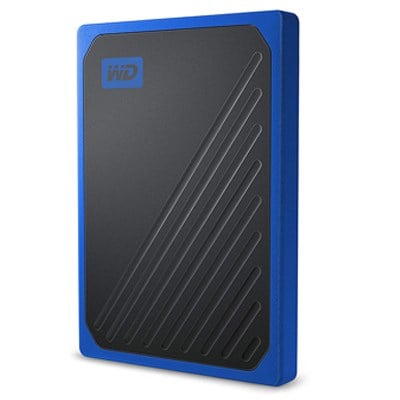
Samsung T5 Portable SSD – 1TB – My favourite for traditional traveling
LaCie Rugged Mini 1TB – Great for backing up a mountain or on the beach
Western Digital My Passport Ultra 1TB – Great for some extra room for your desktop.


Online Photo Services:
Prime Photos & Google Photos remain my favourite. Extremely useful for backing up your photos straight from your phone (leave it doing its backup for you while you do other things and sharing with the family). This seems to be the easiest photo backup for those who are looking for how to backup photos iphone.
Google self sorts for you. While Amazon’s photo storing and organization feature isn’t as comprehensive as Google’s — and its unlimited photo storage is only available for Amazon Prime members — the service has a few things going for it. First of all, users have multiple upload options available to them: through the Amazon site, with the Desktop app and with the mobile app.
I love the Amazon Prime Photos App – Back up or clean up your photo straight from your phone while you’re having fun creating memories with your family.
Print:
While it remains the safest option, it’s also the most space consuming, if you just print them. So here’s creative ways to use your photos.
Pro Tip: Now that you have organised all your photos into one place.
BACK THEM UP!
Step 2: Time to cull those photos
Noone needs 42 pics of Jack jumping. You just need the best one. Now don’t get me wrong. I love having loads of photos and I do keep some of my not so ‘photographic’ ones if they hold special meaning to me. You just need to ask yourself – why do I want this photo? If you can genuinely answer it. Then keep it.
Some people get so held up with which one’s the sharpest, cleanest. Rather than which one evokes an emotion with me, helps me remember that time. I personally, prefer to rank my photos in Lightroom, using the star rating, pick and reject.
For me phone. I’m a fan of Zyl it’s all about managing duplicates.
Price: Free for Android and iOS
Step 3: How to always find a photo
Unfortunately, many cameras produce images with weird filenames like “DSC1005.JPG” that do not make any sense. I highly recommend to rename all of your images to make it easier for you to manage your photos by searching for the file names in the future. Again, you can do this in many different ways, but I will show you the easiest method.
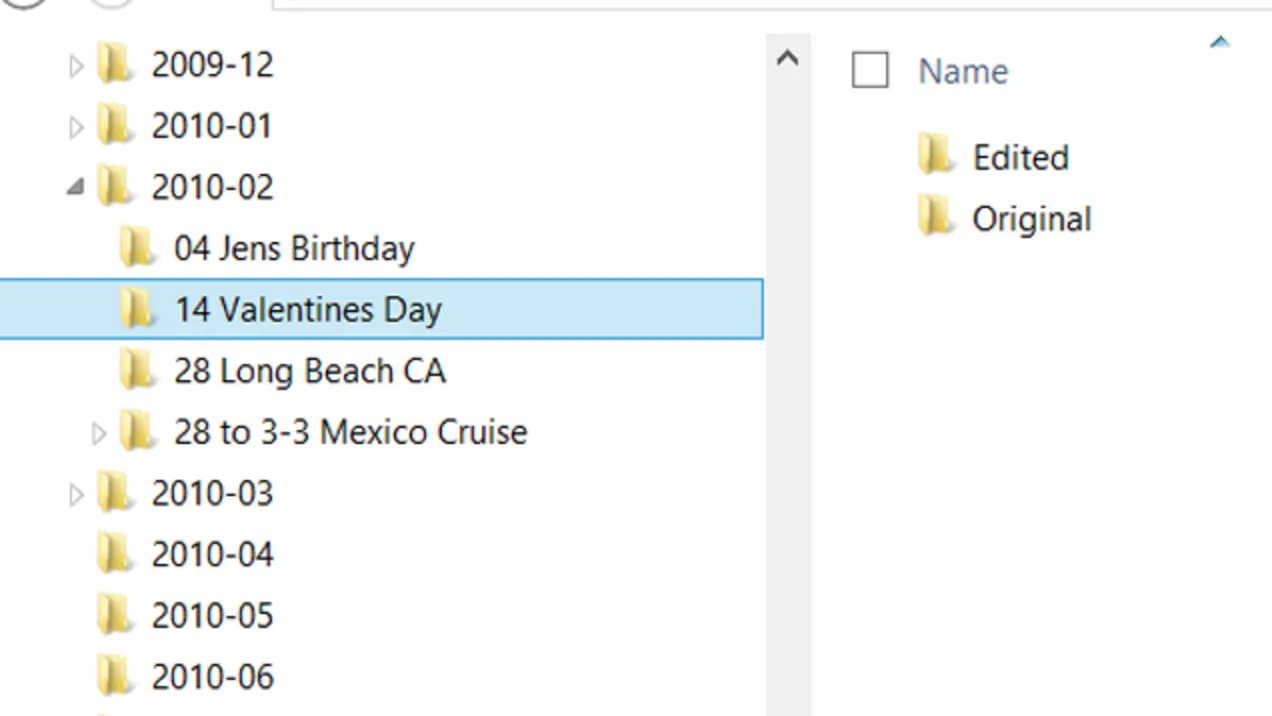
I personally find the best way to store my photos is by date.
Try something like this:
YYYY-MM-DD-Theme-Location-Description of what’s in the image, or a combination of these factors.
(I prefer to use the year first, then month, then day; because if your files are somehow mixed up in one folder, it will be easier to differentiate them by year, then month then day. If you start with a month, it will all get mixed up, because the months are repeated every year)
The other thing to do to make life easier when organising your photos, is to tag your photos with keywords.
Step 4: How to batch change your photo files names.
Horrified by the thought of having to change thousands of file names.
Here’s a quick start guide:
How to batch rename files for Windows
- Make sure all the photos you want to rename are in one folder.
- Select all the image files you need – you can click and drag; you can hold down ‘Ctrl’ and click multiple files at once; or you can click the first file, hold down the ‘Shift’ key and then click the last file to select a range of files.
- Then you can rename the batch by right-clicking and selecting ‘rename’ from the menu, or click the ‘home’ tab at the top of the window and click ‘rename’ there.
- When you type a name into one file and hit ‘enter’ or click elsewhere in the window, the name will replicate across all the files you selected. And to make sure you can tell them apart, you’ll see a number in brackets at the end of each file name.
How to batch rename files for Mac


- Go into ‘finder’ and select the files you want to rename. You can click and drag to highlight files; you can hold down the ‘Command’ key and click on multiple files; or you can click the first file, hold down the ‘Shift’ key, then click the last file to select a range of images.
- Right-click or hold ‘Command’ and click on the file selection. Then click ‘rename X items’.
- In the box that appears, choose ‘replace text’ from the dropdown menu.
- In the box that says ‘replace with’, enter your new file name then click ‘rename’. The name will be replicated across all the files, but they’ll be numbered at the end.
Step 5: Set a reminder on your phone to do regular backups and clean outs.
Most of all, work out a system to manage your photos that works for you.
- Find one primary location to gather all your photos
- Purge them, based on your heart not your head.
- Name your files and find a category system that works for you
- Finally, back them up. The only thing people miss when disaster happens is their family photos.
So how do you use your photos?


